

- Faster upload and download speeds due to more efficient binary file transfers.
- Enhanced visualization of different file types in the LangSmith UI.
- UI
- SDK
1. Create examples with attachments
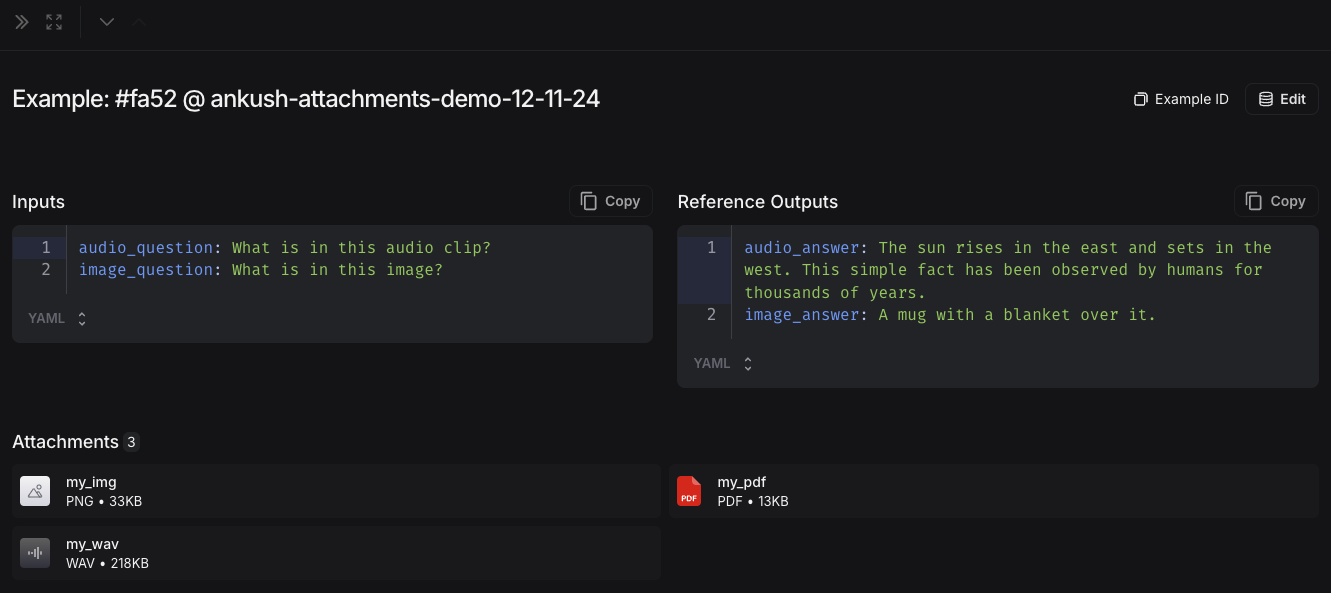
You can add examples with attachments to a dataset in a few different ways.From existing runs
When adding runs to a LangSmith dataset, attachments can be selectively propagated from the source run to the destination example. To learn more, please see this guide.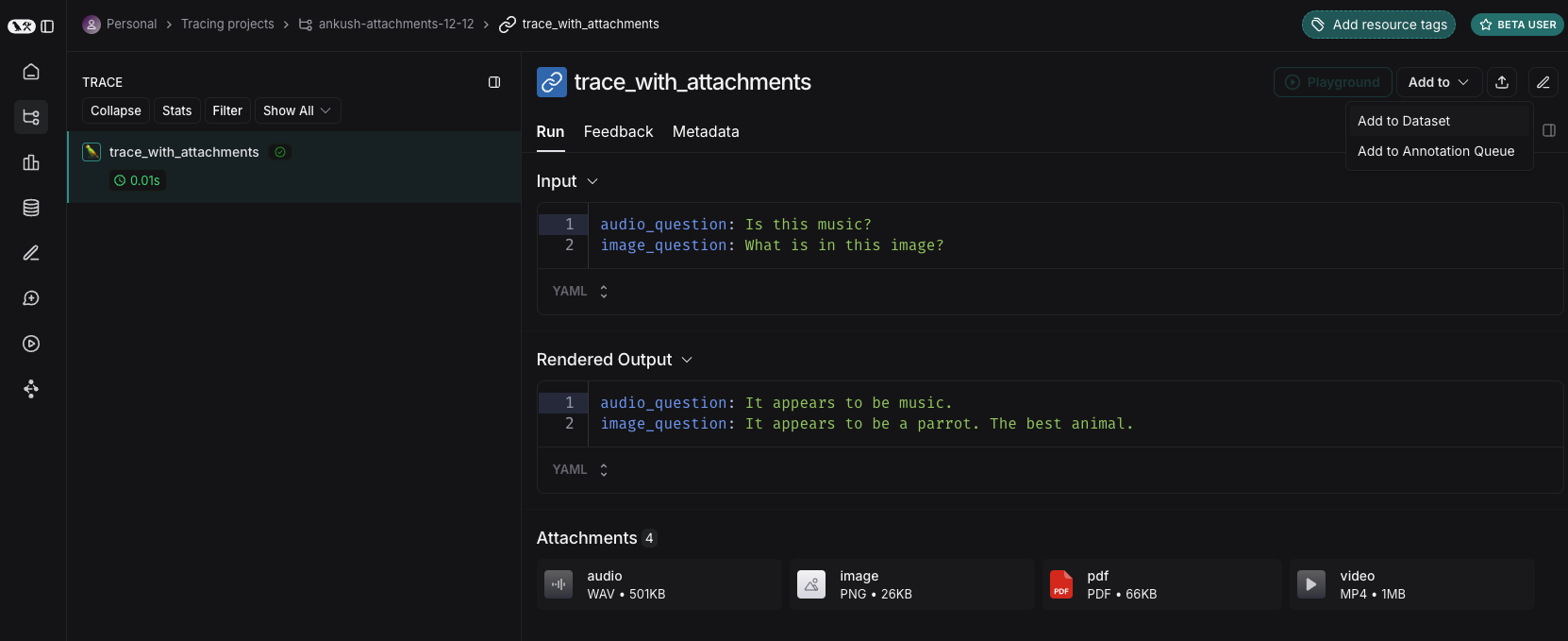
From scratch
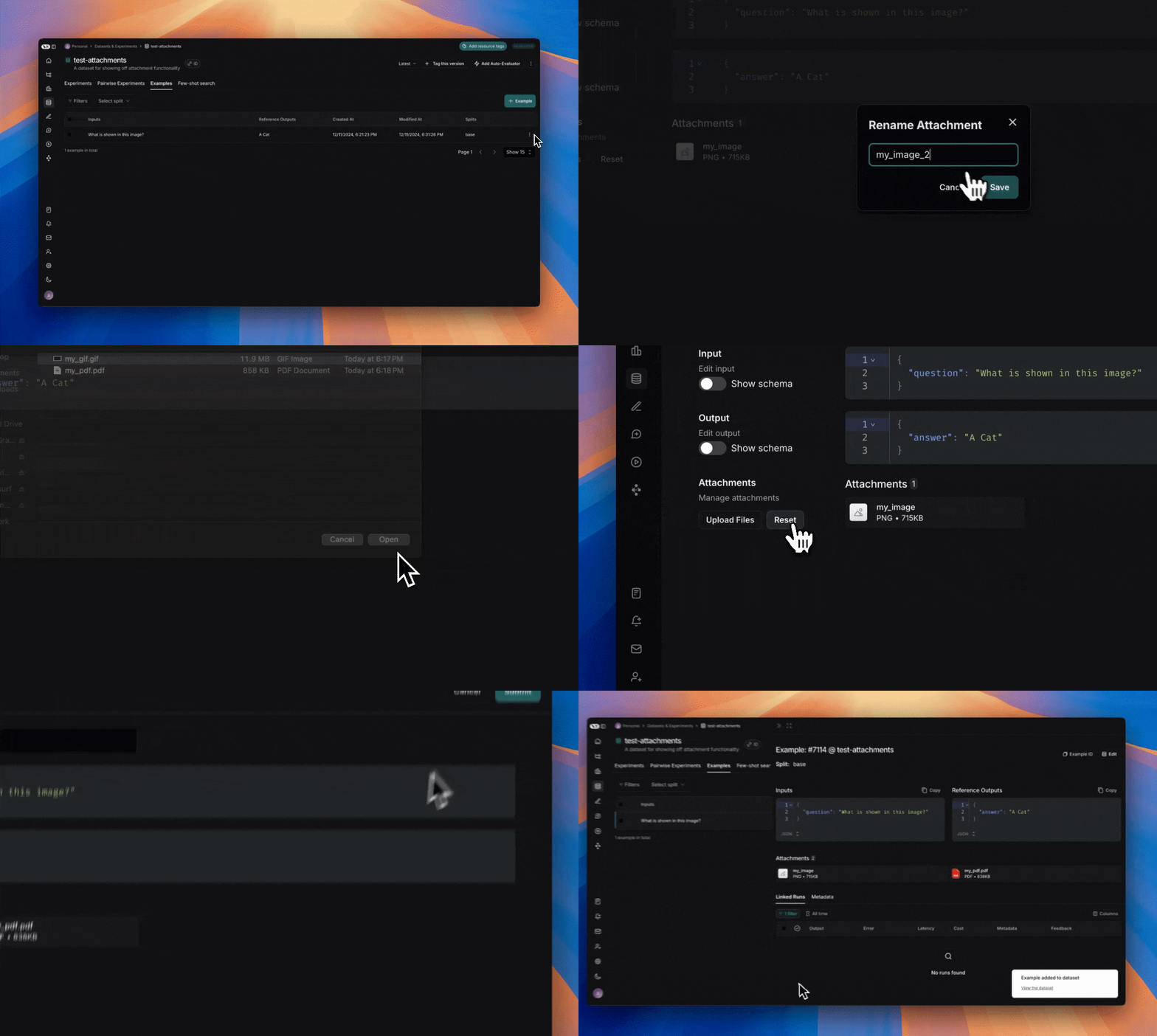
You can create examples with attachments directly from the LangSmith UI. Click the+ Example button in the Examples tab of the dataset UI. Then upload attachments using the “Upload Files” button: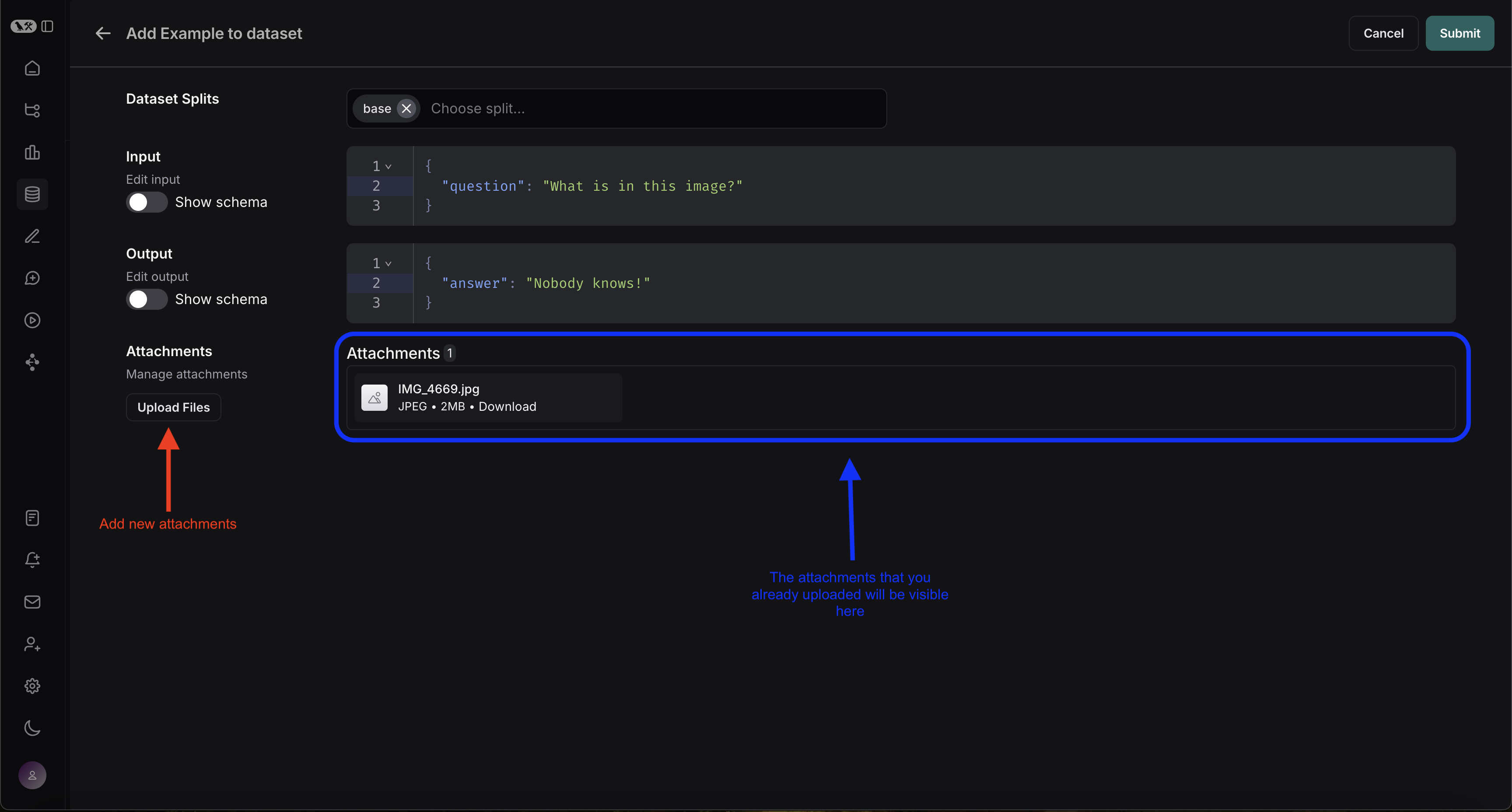
2. Create a multimodal prompt
The LangSmith UI allows you to include attachments in your prompts when evaluating multimodal models:First, click the file icon in the message where you want to add multimodal content. Next, add a template variable for the attachment(s) you want to include for each example.-
If you want to include a specifc attachment, you can use the suggested variable name, such as
{{attachment.file_name}}, this will map the file withfile_namein the attachment list to pass it to the evaluator -
If you want to include all attachments, use the
{{attachments}}` variable.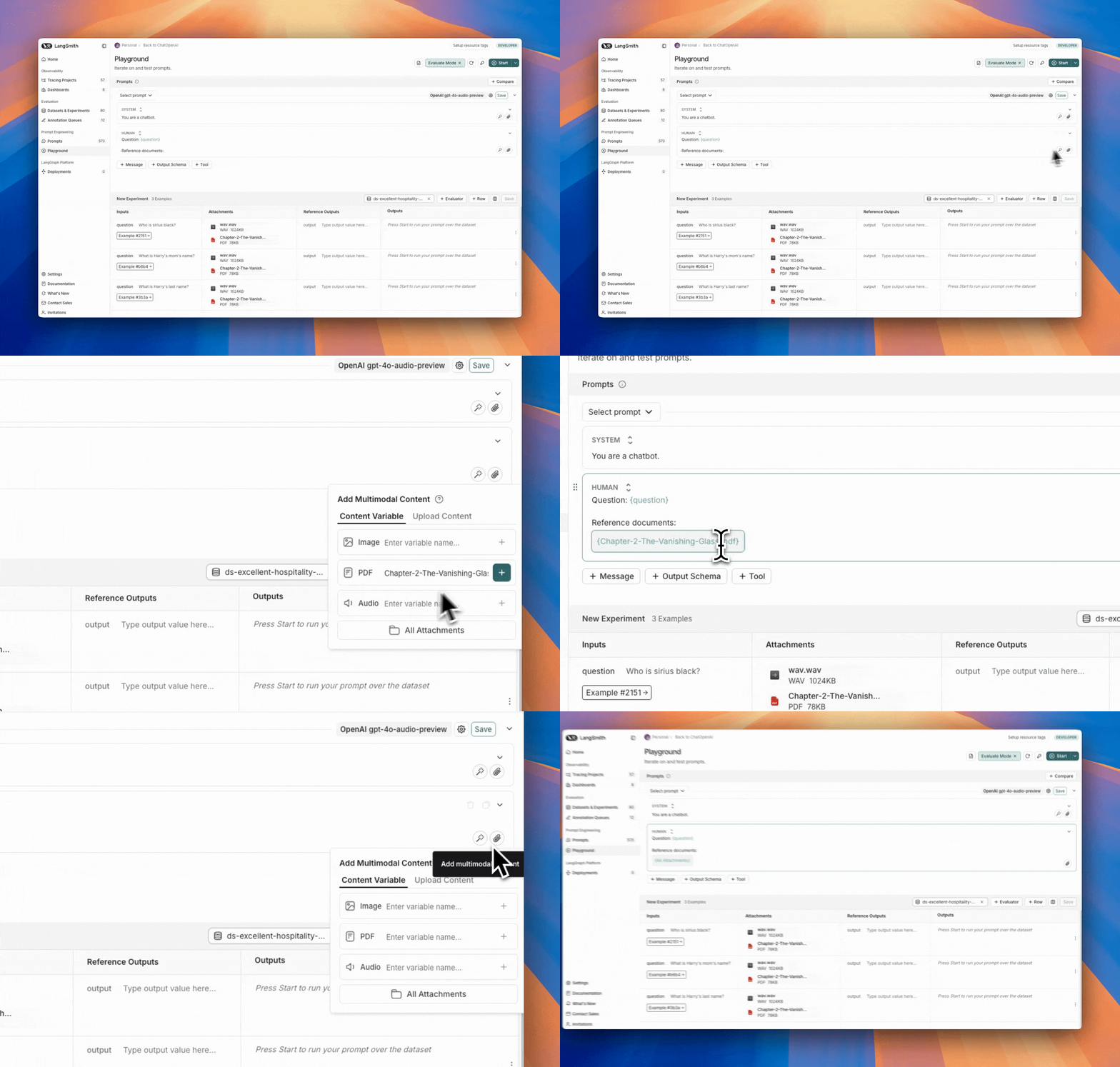
3. Define custom evaluators
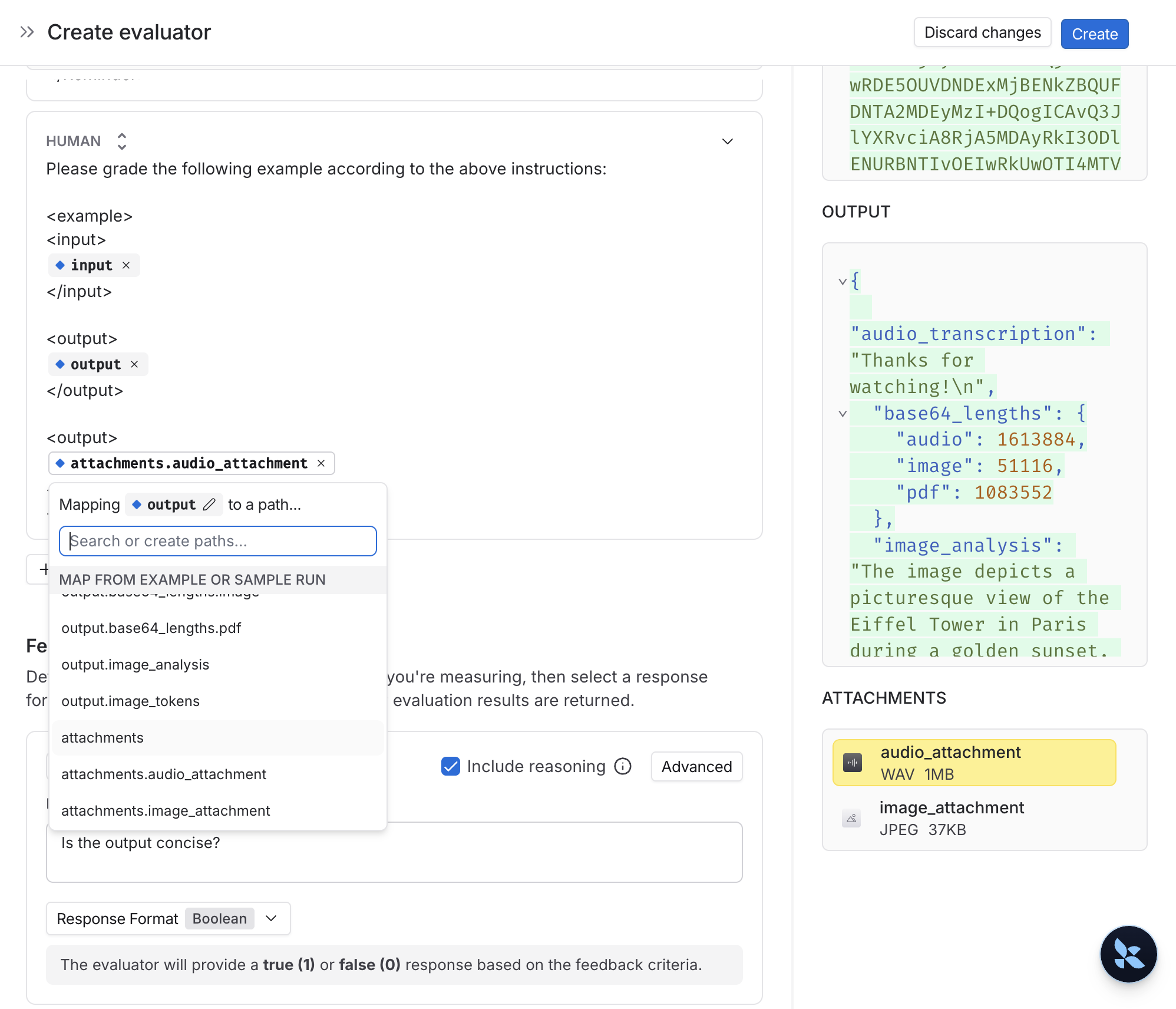
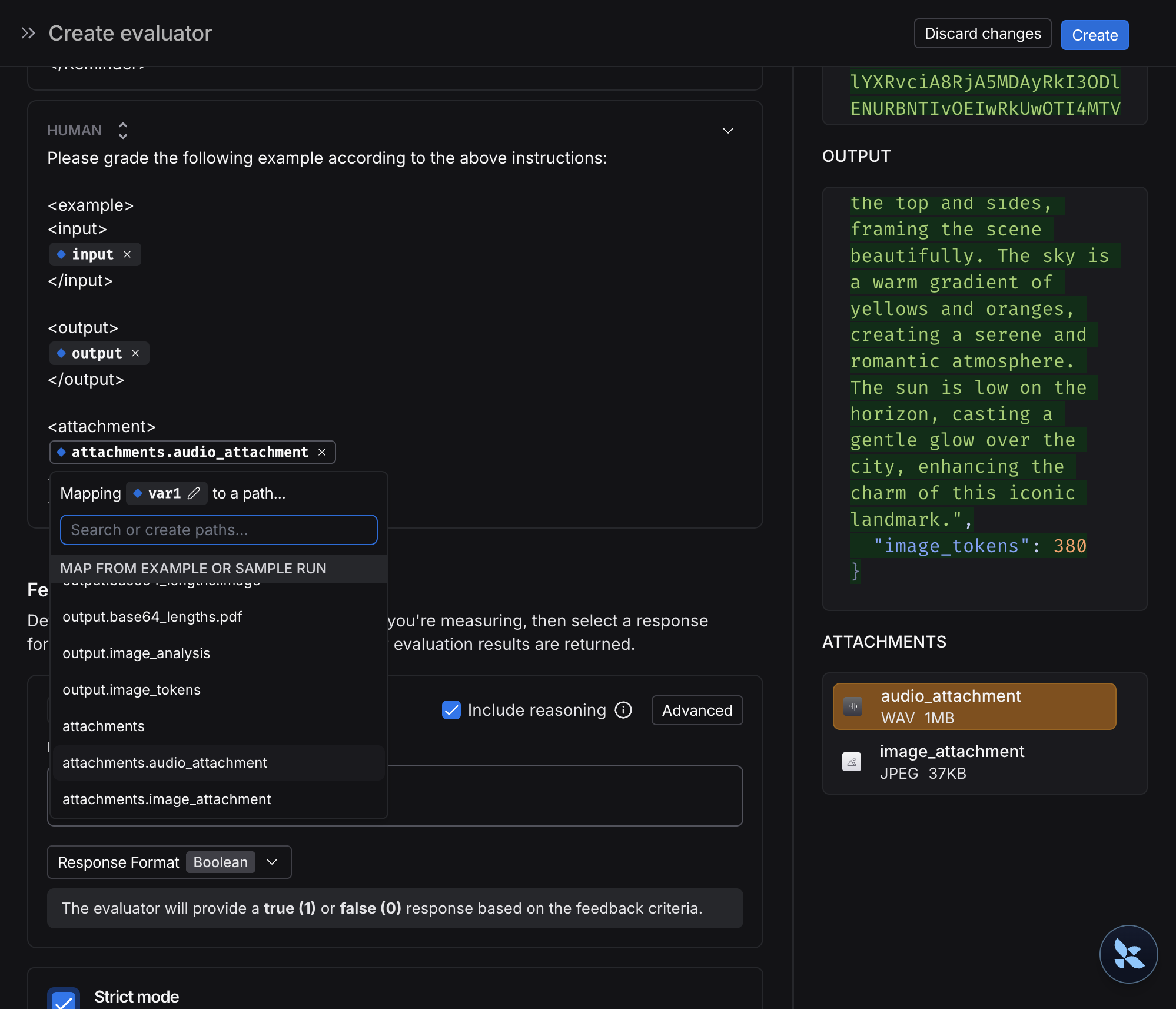
You can create evaluators that use multimodal content from your dataset examples.Since your dataset already has examples with attachments (added in step 1), you can reference them directly in your evaluator. To do so:- Select + Evaluator from the dataset page.
-
In the Template variables editor, add a variable for the attachment(s) to include:
- If you want to include a specifc attachment, you can use the suggested variable name, such as
{{attachment.file_name}}, this will map the file withfile_namein the attachment list to pass it to the evaluator. - If you want to include all attachments, use the
{{attachments}}` variable.
- If you want to include a specifc attachment, you can use the suggested variable name, such as
- Checks if an image description matches the actual image content.
- Verifies if a transcription accurately reflects the audio.
- Validates if extracted text from a PDF is correct.
- OCR → text correction: Use a vision model to extract text from a document, then evaluate the accuracy of the extracted output.
- Speech-to-text → transcription quality: Use a voice model to transcribe audio to text, then evaluate the transcription against your reference.
4. Update examples with attachments
Attachments are limited to 20MB in size in the UI.
- Upload new attachments
- Rename and delete attachments
- Reset attachments to their previous state using the quick reset button
Connect these docs to Claude, VSCode, and more via MCP for real-time answers.